
Client Portal FAQs
Having problems accessing our Client Portal? We have compiled a series of our most Frequently Asked Questions (FAQs) to give you the support you need to view your SIPP information and documents.
Getting Started
What is the Dentons Client Portal?
The Dentons Client Portal is a secure view-only online platform that allows you to access information about your SIPP.
Through the Client Portal, you can:
- View your SIPP investments and their last known valuations
- Check important information about your SIPP
- View and securely download key documents such as pension payslips, annual reviews, and invoices
- Access your Pension Administrator’s contact details
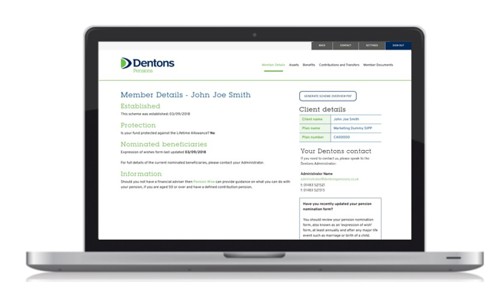
The portal is designed to make managing your pension simpler, faster, and more secure.
Next steps
Once your SIPP has been established, you will receive an email and letter from your Pension Administrator confirming your Client Portal login details.
How do I get access to the Client Portal?
Access to your Client Portal is automatically set up when your SIPP has been established.
- For new clients, your Pension Administrator will send you an email containing your temporary username, and a letter containing your temporary password, to ensure only you can access your pension information when your new SIPP is set up.
- For existing SIPP clients, if you have forgotten your login details, please use “I’ve forgotten my password” link on the Sign in page.
Next steps
If you have not received your client portal details from your Pension Administrator, please check your spam or junk folder, but please note it can take a few minutes at busier times, or contact your Pension Administrator for assistance.
What do I need before I login for the first time?
Before logging in, make sure that you have:
- Your email and letter containing your login details
- Access to your email and mobile phone (for the Multi-Factor Authentication stages)
Next steps
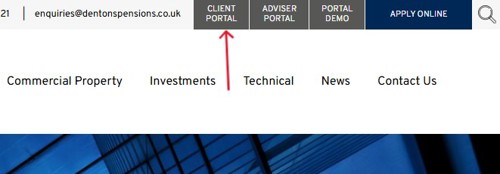
Please use the ‘Client portal’ positioned in the top right-hand corner of the Dentons Pensions website.
Logging into the Client Portal
How do I login to the Client Portal?
To login:
1. Go to the Dentons Client Portal page located in the top right-hand corner of the Dentons Pensions website
2. Enter your username
3. Enter your password
4. Complete the Multi-Factor Authentication (MFA) process
Once verified, you will be taken directly to your Client Portal home page.
Next steps
If you cannot log in, you can use the “I’ve forgotten my password” option on the sign-in page or click here.
I have forgotten my password, what should I do?
If you forget your password, you can easily reset it online.
- Go to the Client Portal login page
- Click “I’ve forgotten my password”
- Enter your registered email address
- You will be sent an email with instructions to reset your password
Next steps
If you do not receive the reset password email, please check your spam or junk folder, but please note it can take a few minutes at busier times.
If you still have not received the email, please contact us via enquiries@dentonspensions.co.uk.
Why am I being asked for a verification code when logging in?
This is part of our Multi-Factor Authentication (MFA) process where unique 6-digit codes will be sent to both your email address, and to your mobile phone via SMS. MFA adds extra layers of protection by requiring:
- Your email address to be verified
- Your mobile phone number to be verified
This helps to ensure that only you can access your account.
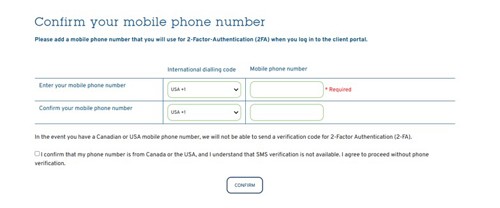
Please note: For U.S. numbers, select the +1 International dialling code. You will then be provided with a tick box that you can select to confirm that your phone number is from the USA, and that you understand that you will be opted-out of SMS verification (as shown in the image above):
Next steps
You will first encounter the email verification stage, where a unique 6-digit code will be sent to the email address you are verifying.
Once completed, you will need to verify your mobile phone number, where you will receive another unique 6-digit code via SMS to the mobile phone number you are verifying.
MFA verification will not need to be completed each time you log in. The mobile phone number verification lasts for 30 days, after which the Client Portal will prompt you again to re-confirm your mobile phone number for security purposes.
Using the Client Portal
What can I do in the Client Portal?
The Client Portal allows you to securely view information relating to your SIPP.
You can typically:
- View your SIPP investments and their last known valuations
- Check important information about your SIPP
- View and download key documents and statements such as pension payslips, annual reviews, invoices, or an overview of your SIPP
- Access your Pension Administrator’s contact details
The portal is designed to keep all of your SIPP’s key information in one secure place.
Next steps
Log in to explore your how to view your SIPP information and other areas of the Client Portal.
How do I view and download my documents?
When you have logged into the Client Portal, you will see the below sections at the top of your screen.

Your scheme documents, such as invoices or financial statements, can be found in the “Member Documents” section, as highlighted in the image above:
Once you have clicked on the “Member Documents” tab, see the following options:
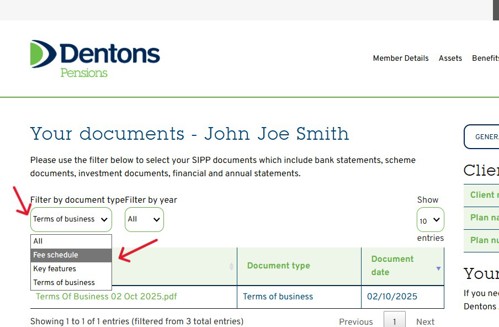
By default, you will see our Terms of Business. You can use the filter to select the documents you wish to view such as, fee invoices, annual statements, and bank account statements.
You can download your documents by simply clicking on the document title you wish to view.
Multi-Factor Authentication (MFA)
What is Multi-Factor Authentication (MFA)?
Multi-Factor Authentication (MFA) is a security feature which adds an extra layer of protection to your Client Portal.
It works by requiring two types of verification:
- Email address verification
- Mobile phone number verification
Next steps
Enter the unique 6-digit verification codes sent to your email address and mobile phone number (via SMS) when prompted during the login process.
For more information about the verification codes see: "Why am I being asked for a verification code when logging in?"
Why is MFA required?
MFA helps keep your SIPP data secure.
It protects your account by ensuring that only you can access your account.
What should I do if I have not received my verification code?
If you are not receiving your verification codes, please check the following:
- Check your spam or junk email folder
- Ensure your email address is correct
- Ensure your mobile phone number is correct
- Wait a few minutes and click “Resend Code”
Next steps
If you cannot complete the MFA process, please contact us via enquiries@dentonspensions.co.uk.
What if I’ve recently changed my mobile phone number or email address?
If you have recently changed either your mobile phone number and/or email address, please contact your Pension Administrator and confirm the new details which will be updated on our system.
After taking you through security screening, we can update your contact details securely.
Can I use the same email address/mobile phone number for more than one account?
No, the same email contact details cannot be used for more than one Dentons Pensions account.
Can I opt-out of the MFA process?
Due to our strong security measures in protecting client information, we do not let clients opt-out of MFA.
If you would like to discuss our MFA process, please contact us via enquiries@dentonspensions.co.uk.
How often do I have to verify my mobile phone number?
When you first log in, you will use Multi-Factor Authentication (MFA) to verify your email address and mobile phone number.
For all future logins you will only need to verify your mobile phone number every 30 days.
If you select “Trust this device,” you won’t normally need to verify your details again unless you clear your cookies, change your browser settings, or use a different device.
Troubleshooting
Why is my account suspended?
Your account can become suspended when too many failed login attempts have taken place.
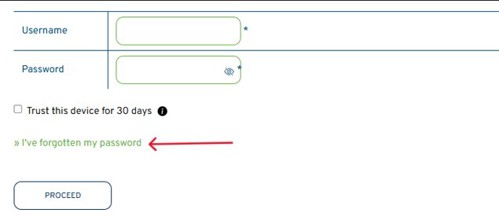
To resolve this issue, you can click “I’ve forgotten my password” on the sign in page to reset your password.
The Client Portal is not loading, what should I do?
If the Client Portal is not loading properly, please try the following:
- Refresh the page
- Use a different web browser
- Clear your browser cache (See: How do I clear my browser cache?)
- Try accessing the Client Portal on another device
These steps resolve most common page loading issues.
Next steps
If the problem continues, please contact us with details of the issue via enquiries@dentonspensions.co.uk.
How do I clear my browser cache?
‘Cache’ is the information that your device or browser automatically stores the first time you open an application or visit a website, allowing you to gain faster access.
When too much information is stored or files are outdated, your browser or device can sometimes block new information (like login details) from being entered or stored on your device.
Clearing your browser cache is very easy to do and can help resolve login issues.
Below are the different ways to clear cache depending on the browser you are using:
- In Google Chrome: Go to Settings > Privacy and security > Clear browsing data.
- In Microsoft Edge: Go to Settings > Privacy, search, and services > Clear browsing data.
- In Safari: Go to Preferences > Privacy > Manage Website Data > Remove All.
- You can also simply press Ctrl + F5
Once you have cleared your cache, you may be prompted to verify your device again when you next login to the Client Portal.
Why am I being logged out of the Client Portal?
For security reasons, the Client Portal will automatically log you out after a 5 minute period of inactivity.
This helps protect your account if you leave your device unattended.
Simply log in again to continue.
Security and Data Protection
Is the Client Portal secure?
Yes, Dentons Client Portal security measures include:
- Encrypted connections
- Secure document storage
- Multi-Factor Authentication (MFA)
- Controlled access permissions
These safeguards help protect not only your personal and financial information, but also our Staff and business information.
How can I keep my Client Portal account secure?
You can help keep your account safe by following these best practices:
- Use a strong, unique password
- Do not share your login details
- Use a trusted email address and mobile phone number during the Multi-Factor Authentication process
- Keep all documents you download in a safe and secure location
- Always log out after using the Client Portal
Dentons Pensions will never ask for your password.
If you believe your account or email address may have been compromised, you must contact your Pension Administrator immediately.
Problems and Support
I need help using the Client Portal, what should I do?
If you are having issues using the Client Portal, please look through the above FAQs to find the answer to your information, specifically the following sections:
- Getting started
- Logging into the Client Portal
- Using the Client Portal
- Troubleshooting
If you continue to have issues with the Client Portal, please contact us via enquiries@dentonspensions.co.uk.
Who should I contact if I need further assistance?
If you have looked through these FAQs and are still experiencing issues with the Client Portal, please contact us at enquiries@dentonspensions.co.uk.
What should I do if I suspect suspicious activity on my account?
If you notice activity you do not recognise:
- Change your password immediately
- Contact your Pension Administrator or email enquiries@dentonspensions.co.uk
- Avoid logging in from shared or public devices
Reporting suspicious activity quickly helps to ensure that your account remains secure and protected.